
Step 1: Downloading
your SSL Certificate & its Intermediate CA Certificate:
- If you had the option of server
type during enrollment and selected Other you will
receive a x509/.cer/.crt/.pem version of your certificate within the
email. Alternately you can access your Certificate User Portal by the
supplied link in the email to pick up the x509 version of your
certificate.
- Copy the SSL certificate and
make sure to copy the —–BEGIN CERTIFICATE—– and —–END CERTIFICATE—– header
and footer Ensure there are no white spaces, extra line breaks or
additional characters.
- Use a plain text editor such as
Notepad, paste the content of the certificate and save it with extension .crt
- If your intermediate CA
certificate for your product is not in the body of the email you can
access your Intermediate CA also in a link within that email. Copy and
paste the contents of your Intermediate CA into its own Notepad file and
save it with a .crt extension also.
Note: Some CAs may require two intermediates for best compatibility. These two are to be copied within their own corresponding .crt files and installed one at a time in a repeated process for intermediate installation.
Step 2: Importing your
SSL Certificate:
- Log into your FortiGate System.
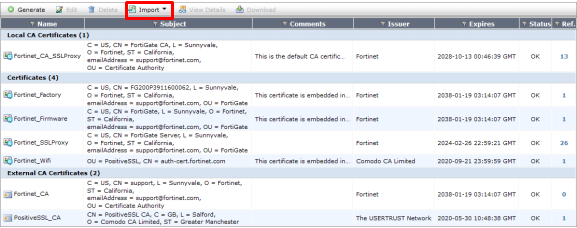
- Browse to System > Certificates.
- Select Import > Local
Certificate.
- Browse to the location and path
of your SSL certificate.
- Click OK.
The status of the certificate should change from PENDING to OK
Step 3: Importing your
Intermediate CA:
- Browse to System > Certificates.
- Select Import > CA Certificate.
- Browse to the location and path
of your Intermediate CA certificate.
- Click OK.
Your Intermediate CA should be under the CA Certificate section of the certificates list.
Step 4: Configuring
your FortiGate VPN to use the new SSL certificate:
- Browse to VPN > SSL > Settings.
- In the Connection
Settings section under the Server Certificate drop
down select your new SSL certificate.
- Click ApplyYou have
configured the Foritgate VPN to use the new SSL certificate.

No comments:
Post a Comment